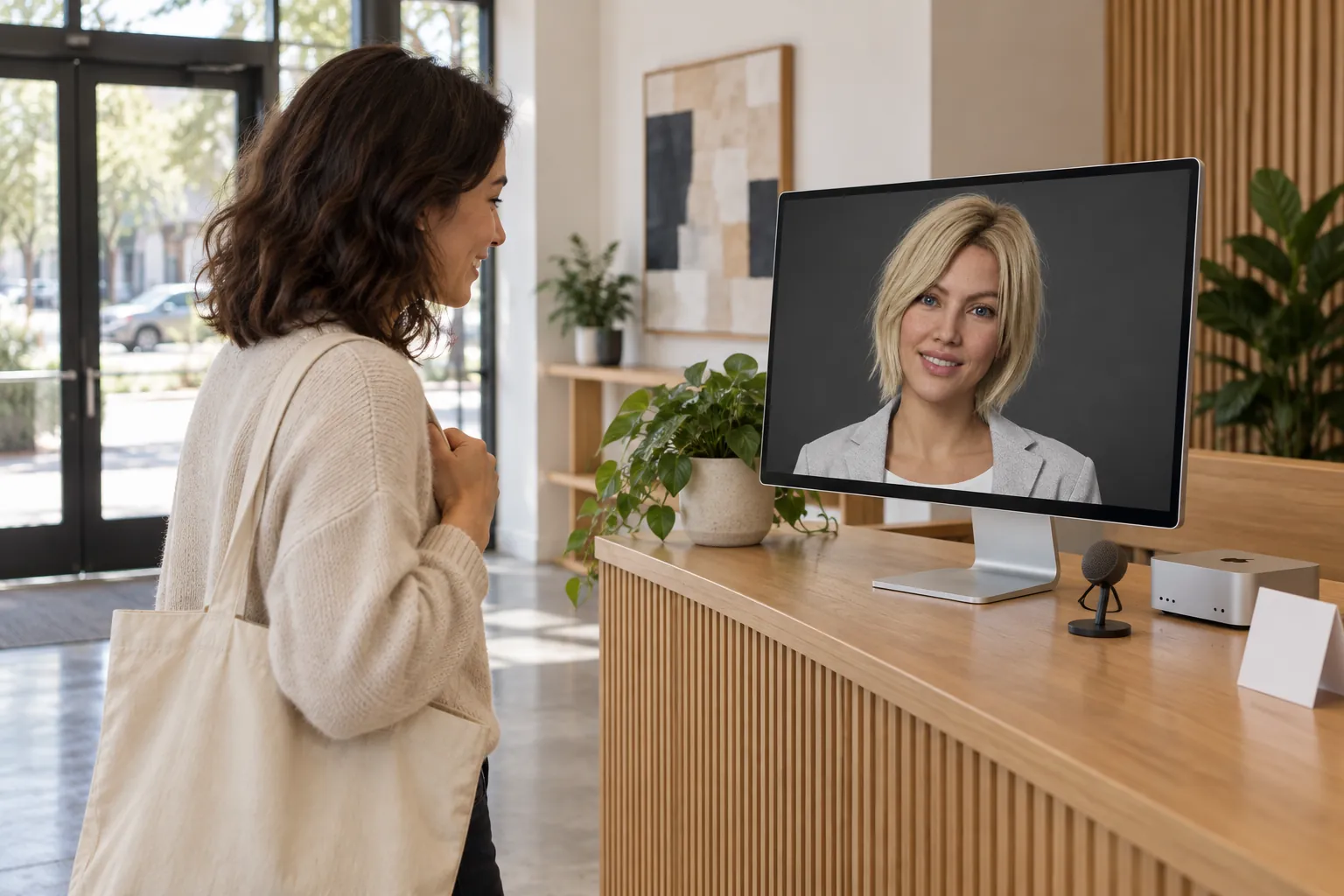
Why a face at the front desk
Walking into an empty reception is awkward. Visitors do not know whether anyone knows they are there, whether to sit or wait, or where the bathroom is. A small business often cannot staff the desk all day, and a sign saying “please take a seat” does not answer questions.
A display on the desk running Facelet can. A lifelike character says hello, asks who the visitor is there to see, answers the handful of questions everybody asks, and tells them what happens next, in a warm human voice. It is not a staff member and does not pretend to be one. It works best in small, fairly quiet spaces: a design studio, an architect’s office, a boutique agency, a showroom, an open house, or a booth at a trade show.
Facelet was built for one person talking at a Mac, so treat this as a considered stretch of it. The rest of this page is how to set it up well, and where it falls short.
What you need
- A Mac with Apple silicon. A Mac mini is ideal: small, quiet, and happy to run all day. macOS 15 or newer.
- A display at head height, facing the door, with speakers loud enough for the room.
- A microphone on the desk. A small USB desk microphone picks up a visitor better than a Mac mini across the desk can.
- One big button. A USB push button or foot pedal that types a single key, so visitors can hold it to talk. More on this below.
- A ChatGPT account that belongs to the business, on a plan with voice conversation, and one Facelet seat. Each Mac used this way takes one of the seat’s three activations.
Setting it up
- Sign in to ChatGPT and choose a character. Pick a face and a voice that suit your space. The character introduces itself by its own name.
- Set the microphone to push to talk, on the button’s key. In the microphone settings in Facelet’s sidebar, choose Push to talk, click the shortcut, and press the big button. Now the character only listens while someone holds the button.
- Keep the Mac awake. Facelet ends the conversation when the Mac sleeps. In System Settings, stop the Mac from sleeping during your opening hours, and turn off the screen saver on that display.
- Make the window full screen from the View menu, so visitors see only the face.
- Give it the morning brief. Each conversation starts fresh, so whoever opens up says the brief out loud once, holding the button. The first line below is a template.
- Put up a small sign. “Hold the button to talk” beside the button, and a privacy note beside the screen. Suggested wording is below.
The morning brief, and other things to say
- “You’re the greeter at the front desk of Northwind Studio, a twelve-person architecture practice. Greet each visitor warmly, ask their first name and who they’re here to see, and ask them to take a seat on the grey sofa; someone will be with them shortly.”
- “Facts you can share: the restrooms are down the hall on the left, we don’t validate parking, and water is on the side table. If anyone asks something else, say a team member will be happy to help. Never make anything up.”
- “Keep every answer to one or two sentences. Never repeat anything one visitor told you to another visitor.”
- “Don’t ask visitors for anything beyond their first name and who they’re meeting.”
Suggested signs
Beside the button: Hold to talk to our greeter. Beside the screen: This greeter is an AI, not a person. When you hold the button, your voice is sent to OpenAI to answer you. Please don’t share anything private. Before you switch it on, check the rules on recording and notice where you are; some places require more than a sign.
Why push to talk, and not always listening
In Always listening mode the character hears everything the microphone hears, and in a lobby that means phone calls, colleagues walking past and visitors talking to each other. It will try to answer all of it. With push to talk on one large button, it listens only when a visitor chooses to talk to it, the conversation stays short, and nobody is overheard by accident.
Other places it fits
- A trade-show booth. A face draws people in. Floors are loud, so keep the microphone close to the button, and brief it on the three things you want every visitor to know.
- An open house or a showroom. Brief it on the property or the products, and let it answer the questions people ask while they wait for you.
- A studio waiting area. Welcome, wait times, and where to hang a coat.
What it won’t do
- It cannot check visitors in, notify staff, or look anyone up. Facelet does not connect to visitor systems, calendars or messaging for this. Keep whatever already tells your team someone has arrived.
- It does not recognise people. It never uses a camera, and it knows only what visitors say.
- It remembers everything said in one conversation. That is why the brief tells it never to repeat what a visitor said. End the conversation at closing time and start a fresh one with the brief each morning.
- It is not for sensitive settings. Do not use it to take medical, legal or financial details from visitors.
- Your ChatGPT plan’s usage limits apply to every conversation it has, so a very busy lobby may reach them.
Using Facelet at your business is allowed: the terms let a business run it on a Mac it owns or controls at its own premises. It may not be offered as a service to other businesses.
Questions
Am I allowed to use Facelet at my business?
Yes. The terms allow a business to run Facelet on a Mac it owns or controls at its own premises, such as a reception display for visitors. Each Mac uses one of your license’s three activations. You may not run it as a service for other businesses.
Can it check visitors in or tell staff someone has arrived?
No. Facelet does not connect to visitor management, calendars or messaging for this use. It greets, answers, and asks people to take a seat. Pair it with whatever already tells your team someone is here: a door chime, a visitor app on a tablet, or a desk bell.
What do visitors need to know about privacy?
Their voice goes to OpenAI through the ChatGPT account signed in on that Mac, under OpenAI’s terms. Nothing passes through Facelet’s servers. Put a small sign by the screen that says so, and check the rules on recording and notice where you are before you switch it on.
Will it answer anyone who talks nearby?
Not with the setup on this page. Use push to talk with one large key at the desk, so the character only listens while a visitor holds it. Always listening in a busy lobby would pick up every conversation in the room.
What does it need?
A Mac with Apple silicon (a Mac mini is ideal), macOS 15 or newer, a display, a microphone and speakers, a ChatGPT account with voice conversation that belongs to the business, and one Facelet seat.